
SwifDoo PDF Pro Review – A Low-Cost, Lightweight, and Feature-Rich PDF Tool with a Low Learning Curve
By the time you are reading this, you have probably stumbled upon dozens of YouTube ads and carefully pushed social media ads that try to convince you to invest in PDF tools that come with a huge cost and an even bigger learning curve.
If you are missing the quiet simplicity in all the PDF tools you know, let me introduce you to SwifDoo PDF, an all-in-one PDF tool that has a whole swarm of productivity tools, right from annotation to conversion, built within, and it looks incredibly simple with its plain, white interface and intuitive buttons.
When I first downloaded and installed SwifDoo Pro on my computer, I thought I have mistakenly opened just another Microsoft Office application. I realized soon that it mimics the MS-Office layout.
However, underneath the simple and easy-to-navigate interface lies a bevy of features that includes everything a personal or enterprise user might need. Read on to know more.


Pros and cons
Swifdoo PDF – Pros and Cons
Features overview
SwifDoo PDF Pro – What Are the Features?
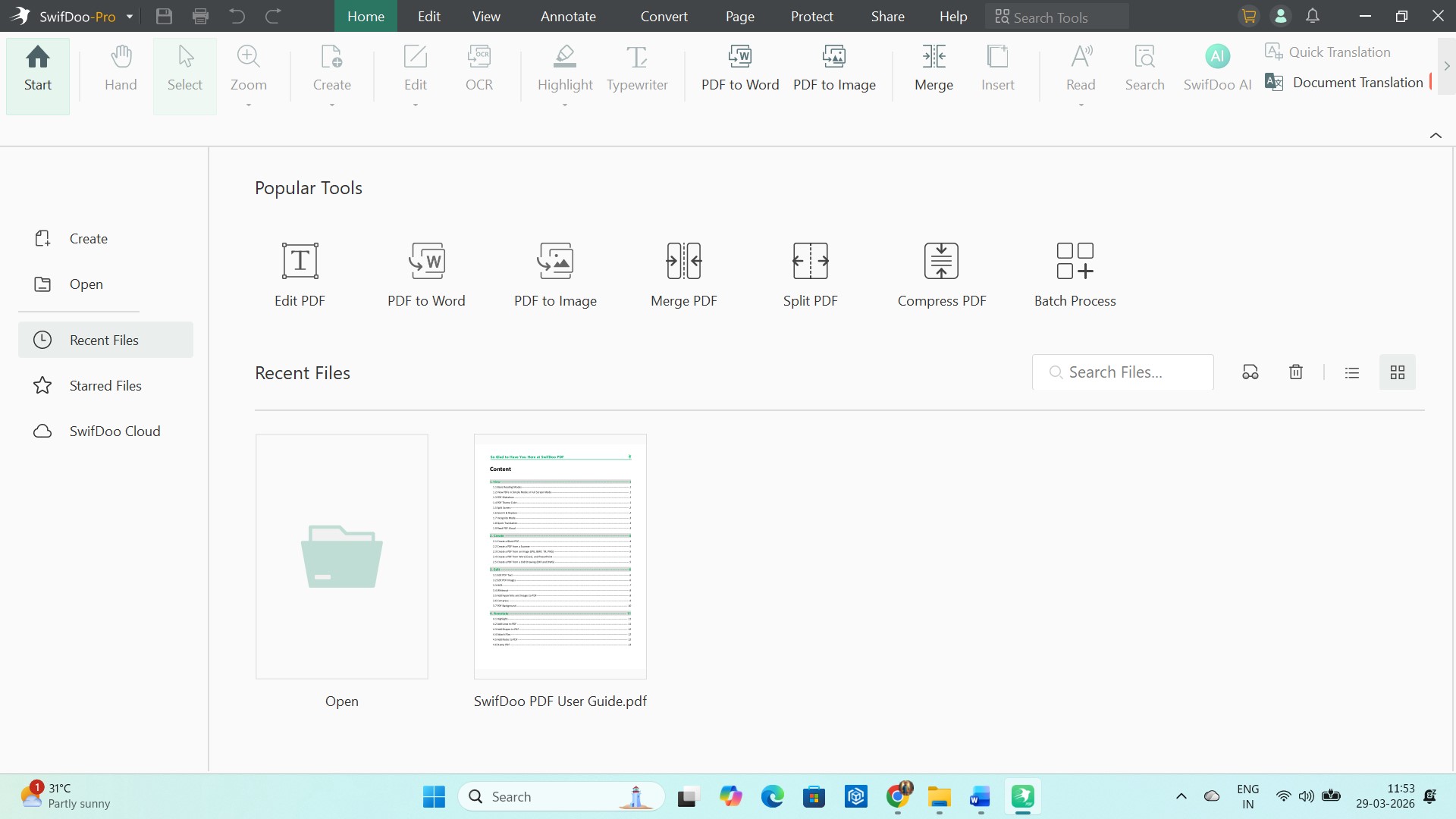
SwifDoo PDF Pro resembles Microsoft Word – a lot! You can access the “Edit” option from the Home tab, and then add, delete, or reformat content effortlessly. Adjust fonts, styles, and colors just like you do in a regular word processor.
Open the text box tool to add new content wherever you need. Use the white-out feature to make sensitive information unrecognizable. In short, you can explore myriad ways to modify text within a PDF document.
Just like text editing, SwifDoo also offers a host of image editing features. I tried pulling a few image files from my drive and it seemed to be a cakewalk.
I just used the drag-and-drop function to place them exactly where I needed.
Then, I clicked on one of the images, and I could crop, rotate and do a lot of other things quite easily. I didn’t have to dig through menus.
There’s a full set of annotation tools, but more importantly, they’re the kind you’ll actually use. Highlight something, leave a note, circle a section – it’s all quick and responsive.
The pencil tool is there for rough markups, which comes in handy more often than expected. File management is just as straightforward.
Merging documents, splitting them up, or converting into other formats doesn’t feel like a gamble where you’re hoping the output turns out right.
It’s consistent, which matters more than having a long feature list.

Talking about the security features, I was quite impressed to see that they don’t get in my way.
You can lock a file so it only opens with a password, and add restrictions if needed. But the most beautiful part is, the entire thing is set up in a way that doesn’t require much figuring out.
Same goes for signatures. Whether you want to type it in, upload, or draw, it takes a few seconds and you’re done.
The SwifDoo AI Assistant is built into the interface. It can summarize long documents, translate text, and break up sections, among other things. It’s easy to use, at least on the surface level. I believe it has still a long way to go.
With its whole range of features and a refreshingly clean interface, does SwifDoo what it takes to challenge the industry leaders?
Let’s not place it in the same bracket as Acrobat Pro, at least for now, but can it compete against similar PDF tools?
I tried finding the answer.
Comparison table with competitors
SwifDoo PDF Pro and Its Competitors – Where It Stands Out?
| SwifDoo PDF Pro | PDFgear | Wondershare PDFelement | BentoPDF | |
| Core Features | Edit, convert, OCR, annotate, AI tools, e-sign | Edit, convert, OCR, annotate, AI chatbot | Full suite: edit, OCR, convert, forms, business tools | Mostly web-based tools (merge, split, compress, etc.) |
| AI Features |  (ChatGPT-powered assistant) | (AI Copilot/chatbot) | (AI summarize, chat, etc.) |  |
| Platform Compatibility | Windows, Mac, Android | Windows, Mac, iOS, web | Windows, Mac, iOS, Android, web | Web-only |
| Mobile App | | (iOS, Android in progress) | (iOS, Android) | |
| Free Version | Limited trial | (no watermark) | (trial with limits) | |
| Refund Policy | 7-day trial (paid plans come with 30-day moneyback guarantee) | NA | 30-day money-back (commonly offered) | NA |
Manual tests
SwifDoo PDF Pro – Checking out How It Works
I spent some time actually working inside SwifDoo PDF. I imported a PDF from my local drive, browsed the tools, and explored its features.
I went straight into edit mode. It’s super-easy, as you just need to click on the file you are going to work on after importing it.
Then, I clicked through the different tabs just to see what’s available, and most of it is where you’d expect it to be.
One good thing about the PDF tool is that none of the features and functions are hidden. In other words, you don’t have to watch tutorials or read how-to guides to get your mitts on the tabs you need.
One of the first things I tried was creating a signature. After typing out my name, I could choose from a few styles.
I picked one, dropped it into the document, and placed it at the bottom. Everything was quick, and easy.
Then, I converted the same PDF into a MS-Word document. It took a few seconds, let’s say less than a minute, but I expected it to process it at a faster pace.
I mean there are plenty of online tools that can convert PDFs at blazing speeds. The bar has been set high already.
Search trends
Google Trends – Is SwifDoo Scoring Well on Web Trends Chart?
I pulled up Google Trends to get a quick sense of how much interest SwifDoo PDF is actually getting.
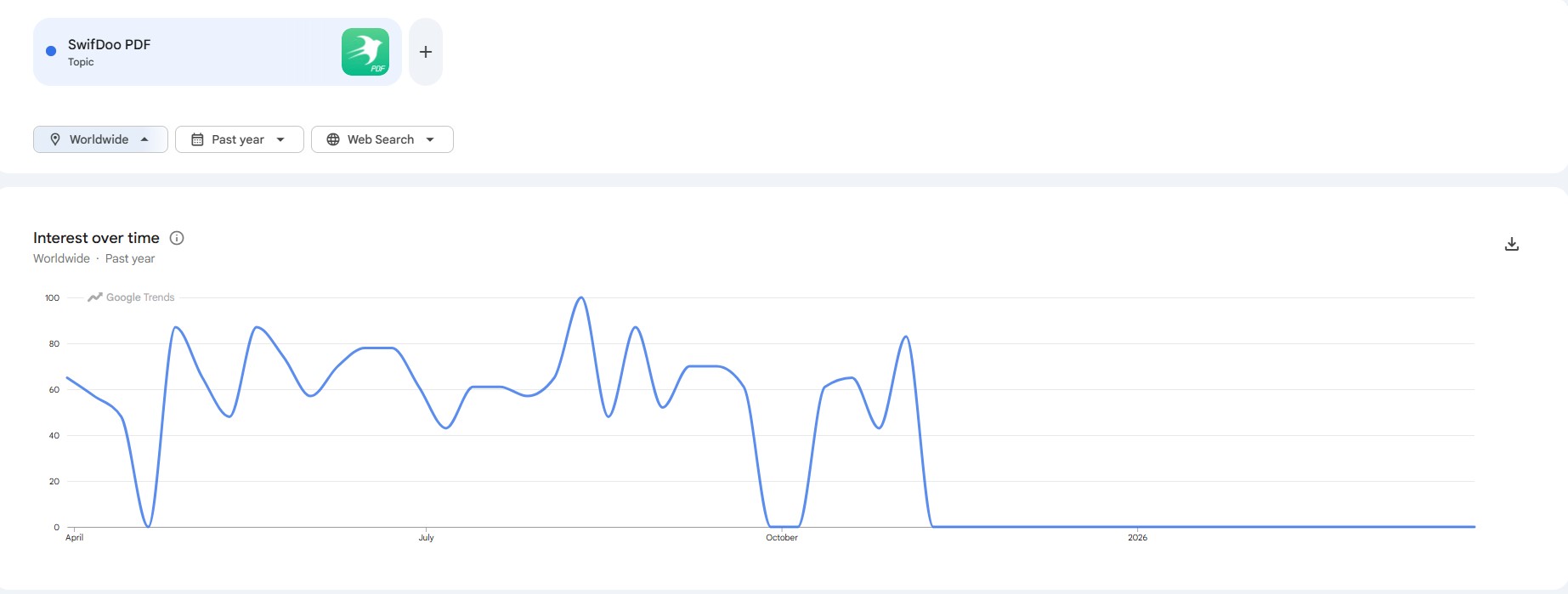
Looking at the past year, the pattern wasn’t exactly stable. It spikes here and there, then drops off sharply -at one point even hitting near zero before picking back up.
That kind of movement usually tells me it’s still trying to find consistent traction rather than holding steady demand.
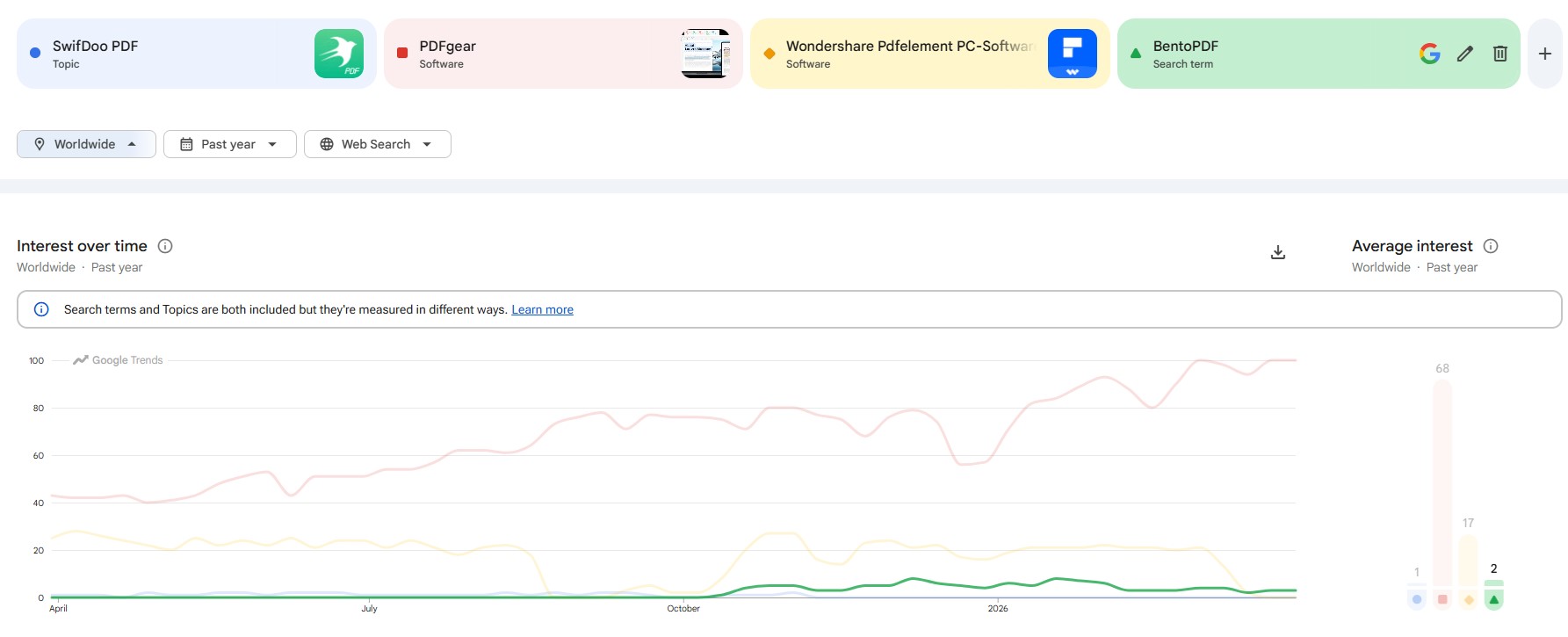
Then I compared it side by side with PDFgear, Wondershare PDFelement, and BentoPDF. The gap was pretty clear.
Wondershare sits way ahead with a steady upward trend and the highest average interest. PDFgear follows behind but still shows consistent growth. BentoPDF shows smaller but visible activity.
I decided to dive deeper and see what people are saying about SwifDoo.
Users’ feedback
What Social Media Users Are Saying about SwifDoo PDF Pro
The best place on the internet to find unfiltered and unbridled opinions of people is Reddit, and I hope we all can more or less agree on this. FB is already teeming with spam and filtered content, so that’s out of the question.
I did a brief search on Reddit to see how people see SwifDoo. What I found is that it’s not hyped up as a “must-have” tool, but it occasionally does get recommended.
People seem to bring it up when someone asks for something lightweight, affordable, or just not overloaded with features they won’t ever need. I guess many of us share the same goal – to have a simple PDF tool that lets us complete our everyday tasks with ease. Not everyone of us is a power user, right?
A few users wrote that it runs well on lower-end laptops. Others seem to like it as a way to avoid subscription-heavy tools.
What about customer support?
How Do You Get in Touch with SwifDoo?
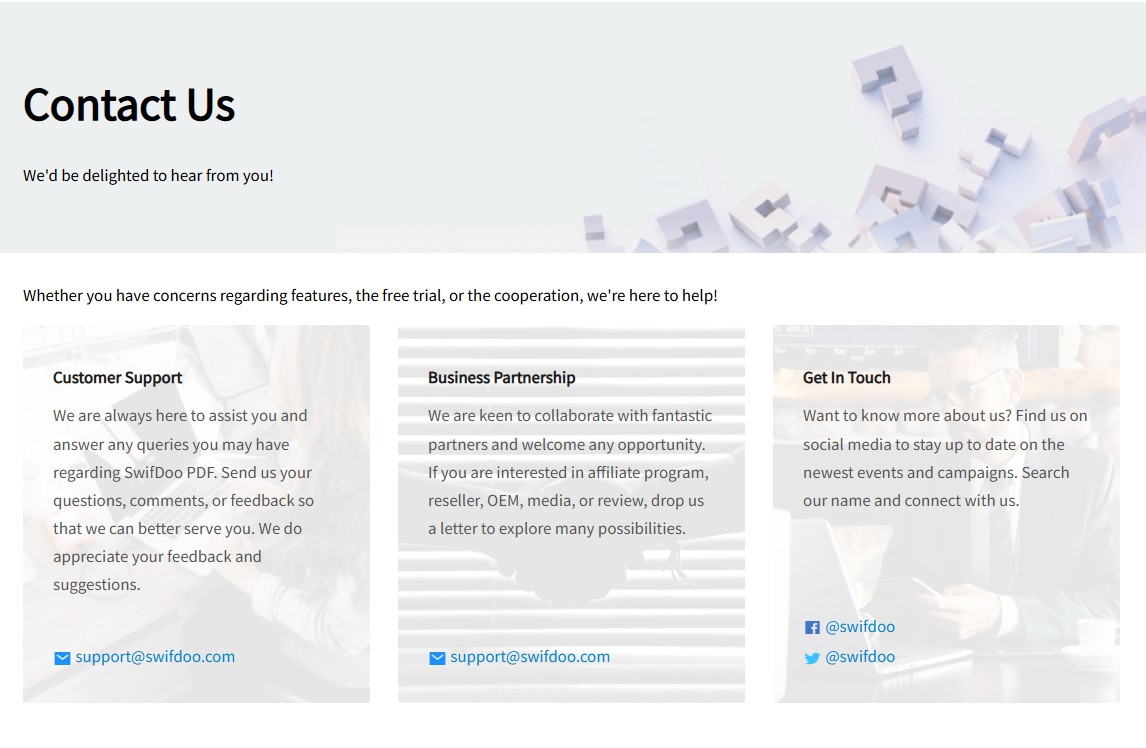
If you are anybody like me, you would probably want to ask a few questions before and after making your purchase, no matter what product you are buying.
I was actually looking for a live chat option so I can directly talk to someone from inside the organization, although live chat windows are mostly “manned” by AI chatbots these days.
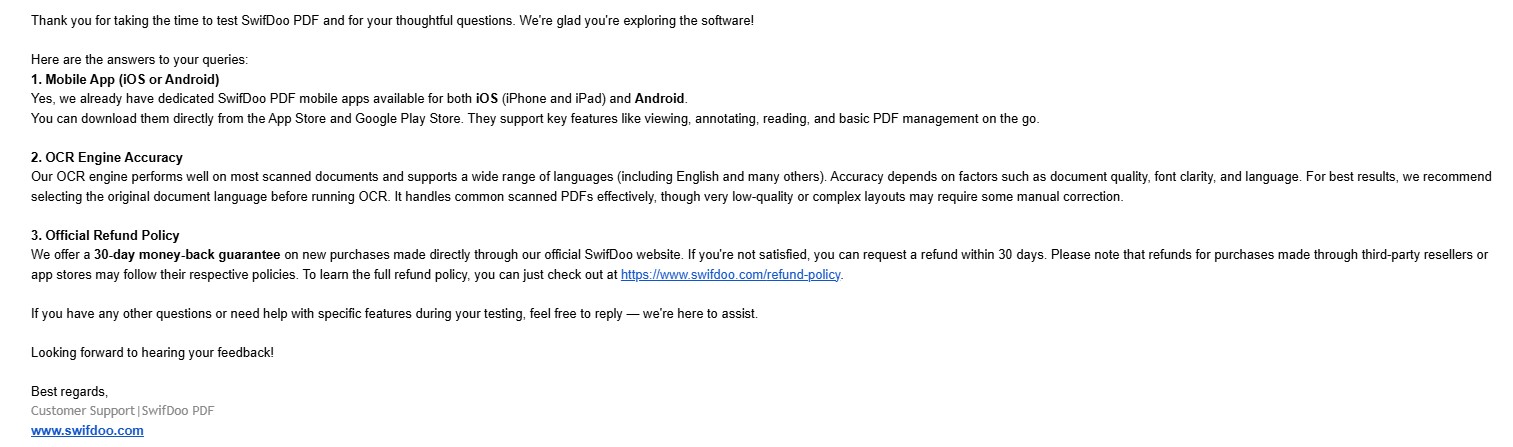
Sadly, SwiftDoo doesn’t have that option. You can either message them on their social media pages and expect a publicized reply to pop up in a matter of days, or email them if you prefer to keep the exchange private.
I had a few queries, so I decided to email them, on a weekday, and I was delighted to receive a detailed response in less than 24 hours. Highly appreciated!
Conclusion
Is SwifDoo Worth It?
I found SwifDoo PDF to be a no-nonsense PDF editing software that packs in a whole lot of features at a fraction of the cost of many big names in its segment.
It’s lightweight, it doesn’t have a clunky design, and has more features under the hood than you could possibly expect from a low-cost PDF tool. Its interface is user-friendly.
I think SwifDoo offers a great value for money for all kinds of users, whether they are personal or business users.
You can use it for simpler tasks like adding a signature to your PDF, or for more complex tasks such as editing, splitting, and merging documents, editing styles and converting to different file formats. Totally recommend it!

